How to Calculate Age in Excel Using Simple Formulas: Step-by-Step Guide
Calculating age in Excel seems like a straightforward task, but it often trips up even experienced spreadsheet users. Whether you are managing employee records, tracking student enrollments, organizing event attendee lists, or maintaining customer databases, figuring out someone’s exact age based on their birth date requires specific formula techniques.
Excel offers several ways to calculate age, ranging from quick approximations to exact calculations down to the year, month, and day. Understanding these methods ensures that your data remains accurate, professional, and reliable.
If you ever need an instant calculation without opening a spreadsheet or setting up complex syntax, you can also use our free online Age Calculator to get an exact breakdown of age in years, months, weeks, and days within seconds.
In this comprehensive guide, you will master every major formula and method to calculate age in Microsoft Excel, troubleshoot common formula errors, and learn best practices for handling date data effortlessly.
Why Calculating Age in Excel Can Be Tricky
On the surface, calculating age is just subtracting a birth date from the current date. However, dates in Microsoft Excel are stored as sequential serial numbers. Excel treats January 1, 1900, as serial number 1, and every day after that increases the number by one.
Because of how dates are structured under the hood, standard subtraction does not automatically account for real-world calendar complexities such as:
- Variations in month lengths (28, 30, or 31 days)
- Leap years occurring every four years
- Partial years and remaining months
- Regional date format differences (MM/DD/YYYY vs. DD/MM/YYYY)
Simply dividing the difference in days by 365 gives an approximate result, but it introduces subtle errors over time due to leap years. To achieve 100% accuracy, you need to use dedicated Excel functions designed specifically for date math.
Method 1: The DATEDIF Function (The Gold Standard for Calculating Age)
The DATEDIF function is widely considered the best and most precise tool for calculating age in Excel. It calculates the difference between two dates in years, months, or days.
An interesting quirk of DATEDIF is that it is a hidden or undocumented function in Excel. This means Excel will not auto-complete the formula syntax when you start typing it into a cell, but it works perfectly across all modern versions of Excel.
Syntax of the DATEDIF Function
The standard structure for the DATEDIF formula is:
=DATEDIF(start_date, end_date, "unit")
- start_date: The person's date of birth (e.g., cell A2).
- end_date: The target date or current date (e.g.,
TODAY()or cell B2). - unit: The unit of time you want returned, enclosed in quotation marks.
DATEDIF Unit Codes Explained
- "Y": Returns the total number of complete years.
- "M": Returns the total number of complete months.
- "D": Returns the total number of complete days.
- "YM": Returns the remaining months after subtracting complete years.
- "MD": Returns the remaining days after subtracting complete months and years.
- "YD": Returns the difference in days assuming both dates are in the same year.
Step-by-Step: How to Calculate Age in Years Using DATEDIF
To calculate someone’s age in completed years, follow these simple steps:
- Open your Excel spreadsheet containing the birth dates.
- Ensure your birth dates are located in a single column (for example, Column A, starting at cell A2).
- Click on the cell where you want the calculated age to appear (for example, Cell B2).
- Enter the following formula:
=DATEDIF(A2, TODAY(), "Y") - Press Enter.
- Hover over the bottom-right corner of cell B2 until the fill handle crosshair appears, then double-click or drag down to apply the formula to the rest of your column.
Practical Example
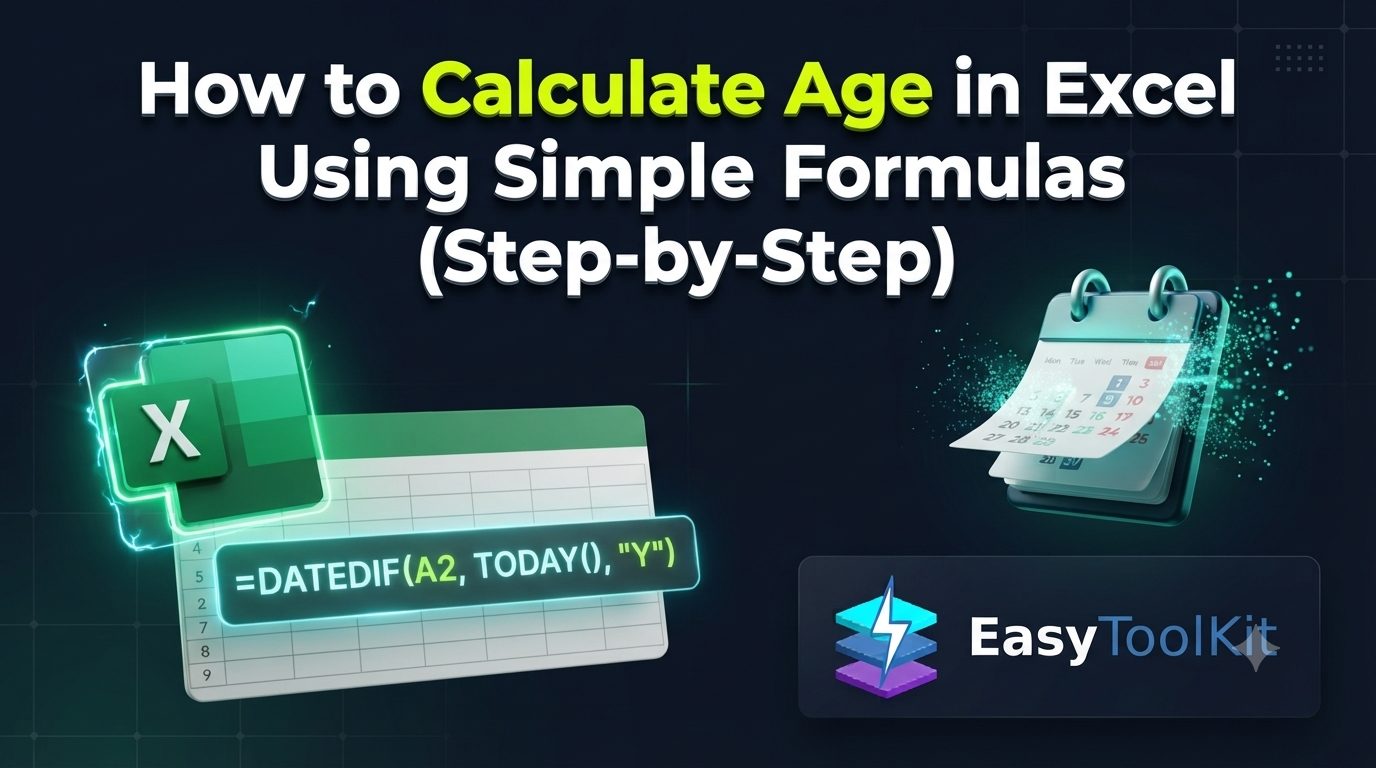
If cell A2 contains the date 1995-06-15 and today’s date is 2026-08-04, the formula =DATEDIF(A2, TODAY(), "Y") will evaluate the precise difference and return 31.
Method 2: Calculating Exact Age in Years, Months, and Days
In human resource management, legal documentation, or medical records, returning just the number of years is often insufficient. You frequently need an exact output such as "31 Years, 1 Month, and 20 Days."
You can achieve this by combining multiple DATEDIF functions using the ampersand (&) text concatenation operator.
The Complete Complete Age Formula
Enter this combined formula into your target cell:
=DATEDIF(A2, TODAY(), "Y") & " Years, " & DATEDIF(A2, TODAY(), "YM") & " Months, " & DATEDIF(A2, TODAY(), "MD") & " Days"
How This Combined Formula Works
DATEDIF(A2, TODAY(), "Y")calculates the complete years.& " Years, "adds a readable text label and comma space.DATEDIF(A2, TODAY(), "YM")extracts the left-over months after complete years are removed.& " Months, "adds the month text label.DATEDIF(A2, TODAY(), "MD")extracts the left-over days after complete months are removed.& " Days"attaches the final days label.
The resulting output in Excel will cleanly read: 31 Years, 1 Months, 20 Days.
Method 3: Calculating Age Using YEARFRAC and INT
If you prefer a documented function that offers built-in auto-complete suggestions, the YEARFRAC function combined with INT is an excellent alternative.
The YEARFRAC function calculates the exact fraction of a year between two dates. Because it returns a decimal number (such as 31.16), combining it with the INT (Integer) function strips away the decimal portion, rounding down to the complete age.
Formula Structure
=INT(YEARFRAC(A2, TODAY()))
Step-by-Step Instructions
- Select the cell where you want the age displayed.
- Enter
=INT(YEARFRAC(A2, TODAY())). - Press Enter.
Why Use INT with YEARFRAC?
If you use =YEARFRAC(A2, TODAY()) without INT, Excel might return 31.16. In common practice, a person is not considered 32 until their actual birthday occurs. The INT function rounds down to 31, ensuring your output accurately reflects completed years of age.
Method 4: Calculating Age as of a Specific Past or Future Date
There are many scenarios where you need to determine an individual's age on a specific historical or future date rather than today's date. Examples include:
- Determining a child's age on the first day of the school year.
- Verifying an employee's age on the date they were officially hired.
- Checking customer eligibility on a specific event registration cutoff date.
To calculate age as of a specific date, replace the TODAY() function with a reference to a cell containing your target date, or use the DATE function directly inside your formula.
Using Cell References
If cell A2 contains the Birth Date (1995-06-15) and cell B2 contains the Target Date (2030-01-01), use this formula:
=DATEDIF(A2, B2, "Y")
Hardcoding a Specific Date
If you want to hardcode a specific reference date directly into the formula without using an extra cell, wrap the date inside the DATE function:
=DATEDIF(A2, DATE(2030, 1, 1), "Y")
The syntax for the DATE function is =DATE(year, month, day). Hardcoding dates as text strings (such as "01/01/2030") should be avoided because regional date settings can cause unexpected formula evaluation errors.
Comparing Excel Age Calculation Methods
To help you decide which formula is best suited for your specific workflow, here is a quick breakdown of how these methods compare:
DATEDIF with "Y" Unit Code:
- Primary Use Case: Standard, clean age calculation in completed years.
- Accuracy: 100% accurate; handles leap years perfectly.
- Pros: Simple, exact, and widely used across all spreadsheet tools.
- Cons: Undocumented in Excel; no built-in formula auto-complete menu.
DATEDIF Concatenated String ("Y", "YM", "MD"):
- Primary Use Case: Full detailed breakdown (Years, Months, Days).
- Accuracy: High accuracy for descriptive age reporting.
- Pros: Highly readable for formal reports and HR documentation.
- Cons: Long formula syntax; output is text, so it cannot be easily used in subsequent mathematical calculations.
INT combined with YEARFRAC:
- Primary Use Case: Quick decimal or whole-year age estimation.
- Accuracy: Extremely high (approximates day-count fraction basis).
- Pros: Native, documented Excel function with auto-complete support.
- Cons: Minor edge-case variations depending on the day-count basis argument selected.
Common Mistakes When Calculating Age in Excel (And How to Fix Them)
Even simple formulas can fail if the underlying date data or cell formatting is incorrect. Here are the most frequent issues users encounter when calculating age in Excel and how to resolve them quickly.
1. Dates Stored as Text (The #VALUE! Error)
If Excel throws a #VALUE! error, it usually means your birth date cell is formatted as text rather than a true date serial number.
- How to Check: Select your birth date cell and look at the Number Format dropdown in the Home tab. Alternatively, test the cell using the formula
=ISNUMBER(A2). If it returnsFALSE, Excel recognizes the entry as plain text. - How to Fix: Select the column, go to the Data tab, click Text to Columns, and click Finish. This forces Excel to evaluate and convert the text entries into standard date values.
2. Incorrect Cell Formatting (Age Displaying as a Date)
Sometimes your formula is completely correct, but the output cell displays a weird date like 1/31/1900 or 1/00/1900 instead of a simple number like 31.
- Why it Happens: Excel automatically copies the cell formatting of referenced date cells to the formula cell.
- How to Fix: Select the cell displaying the result, navigate to the Home tab, click the Number Format dropdown box, and change the setting from Date to General or Number (with zero decimal places).
3. Using 365.25 for Age Calculations
A common shortcut users learn is subtracting the birth date from TODAY() and dividing by 365 or 365.25:
=(TODAY() - A2) / 365.25
- Why to Avoid It: While dividing by 365.25 attempts to account for leap years, it produces floating decimal numbers. Rounding these decimals can cause incorrect results on or near a person's birthday, miscalculating their actual turning age by one day. Always stick to
DATEDIForINT(YEARFRAC())for guaranteed precision.
4. Swapping Start Date and End Date (#NUM! Error)
The DATEDIF function requires the starting date (birth date) to be earlier than the ending date (current or target date).
- Why it Happens: If your
start_dateis later than yourend_date, Excel cannot compute a negative time difference and will throw a#NUM!error. - How to Fix: Ensure the older date (date of birth) is placed as the first argument in the formula, followed by the more recent date.
Pro Tips for Managing Date Data in Large Spreadsheets
When working with large databases containing thousands of rows, managing date calculations efficiently can save significant processing power and time.
Use Dynamic Today Dates
Avoid typing fixed dates into your formulas. Always utilize =TODAY() if you want your spreadsheet to update age calculations dynamically every time the file is opened.
Lock Reference Cells with Absolute References
If your target evaluation date sits in a single reference cell (for example, cell $C$1), make sure to lock it using dollar signs ($C$1) before copying the formula down through thousands of rows.
=DATEDIF(A2, $C$1, "Y")
This prevents Excel from shifting the reference cell down as you drag the fill handle.
Convert Formulas to Values for Static Audits
Dynamic formulas recalculate every time your workbook recalculates. If you need to lock in ages for a official annual audit or quarterly report, copy the calculated age column, right-click, and select Paste as Values. This replaces the active formula with permanent numbers.
Conclusion
Calculating age in Excel does not have to be confusing or error-prone. By mastering the DATEDIF function and understanding how Excel handles date serial numbers, you can easily set up robust spreadsheets that track accurate ages in years, months, and days.
Whether you choose =DATEDIF(A2, TODAY(), "Y") for simple year tracking or combine functions for detailed HR reports, applying these proper date techniques guarantees your data remains clean, reliable, and professional.
Streamline Your Daily Calculations with EasyToolkit
Looking for fast, accurate calculation tools without building complex formulas from scratch? Visit EasyToolkit to explore our growing collection of free digital tools designed to make date tracking, unit conversions, and everyday productivity seamless!

](https://res.cloudinary.com/vte6bacr/image/upload/v1788414309/vspfe6ltqpu5uqsijlmy.jpg)